How To Fix Inflated Meta Ads Conversions (4 Root Causes and a Step-by-Step Debug)
TL;DR
Meta Ads showing more conversions than you actually got is almost never Meta “making up” numbers. It comes down to 4 fixable root causes: events firing where they should not, CRM and web events counting the same conversion twice, attribution windows pulling in view-through and 7-day click data, and the results column bundling everything into one convoluted number. This guide walks you through how to diagnose and fix each one.
In This Post You’ll Learn
- Why Meta probably is not lying about your conversions
- What the results column ACTUALLY includes (and why it looks inflated)
- The 4 root causes behind inflated Meta conversion numbers
- A step-by-step debug checklist to find your specific problem
- How to fix each issue once you identify it
Meta Probably Isn’t Lying to You
You look at your Meta Ads Manager. It says you got 47 purchases yesterday.
You check Shopify. 29 orders.
Your first thought: Meta is making up conversions.
This is one of the most common frustrations in paid advertising. And it is easy to jump to conspiracy. Meta has a financial incentive to make your campaigns look good, and that alone makes people suspicious.
Here is the reality. The likelihood that there is a reasonable, technical explanation for your inflated results is DRAMATICALLY higher than the likelihood that Meta is fabricating data.
Every experienced media buyer who has investigated this pattern has landed on the same conclusion. The numbers are inflated because of how data flows between your site, your CRM, and Meta’s reporting system. Not because someone at Meta headquarters flipped a switch.
The good news: every cause of inflated conversions is diagnosable and fixable. You just need to know where to look.
The four most common culprits are event setup errors, deduplication failures, attribution window confusion, and plain old misinterpretation of what the “results” column actually shows you.
Let’s break each one down.
Why Your Meta Ads Results Column Is More Convoluted Than You Think
Before diagnosing specific problems, you need to understand something fundamental about Meta’s reporting.
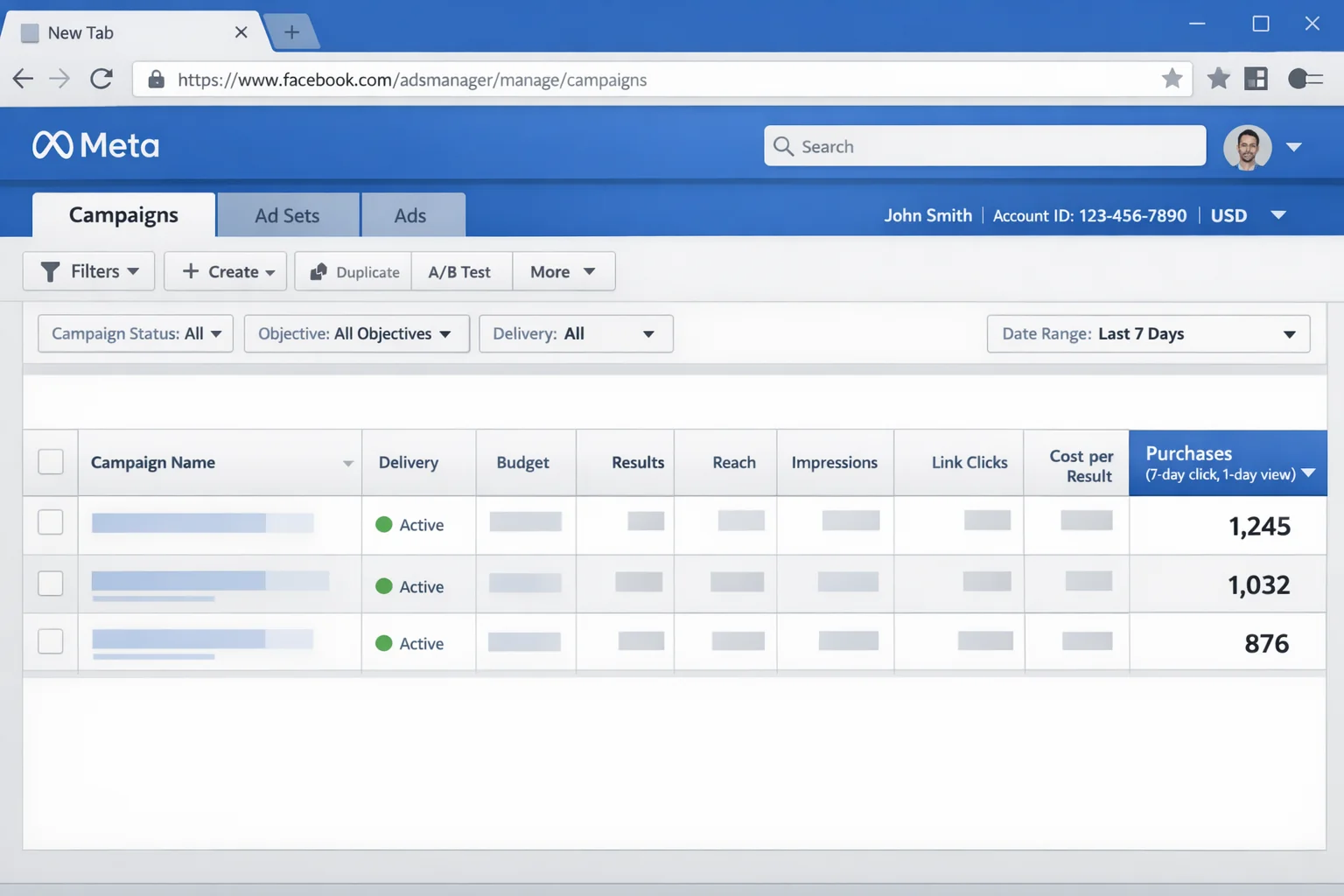
The “results” column in Ads Manager is not a simple count of people who bought your product after clicking your ad.
It is a composite number. And that composite includes several types of conversions most advertisers do not expect.
View-Through and Click-Through Attribution Windows
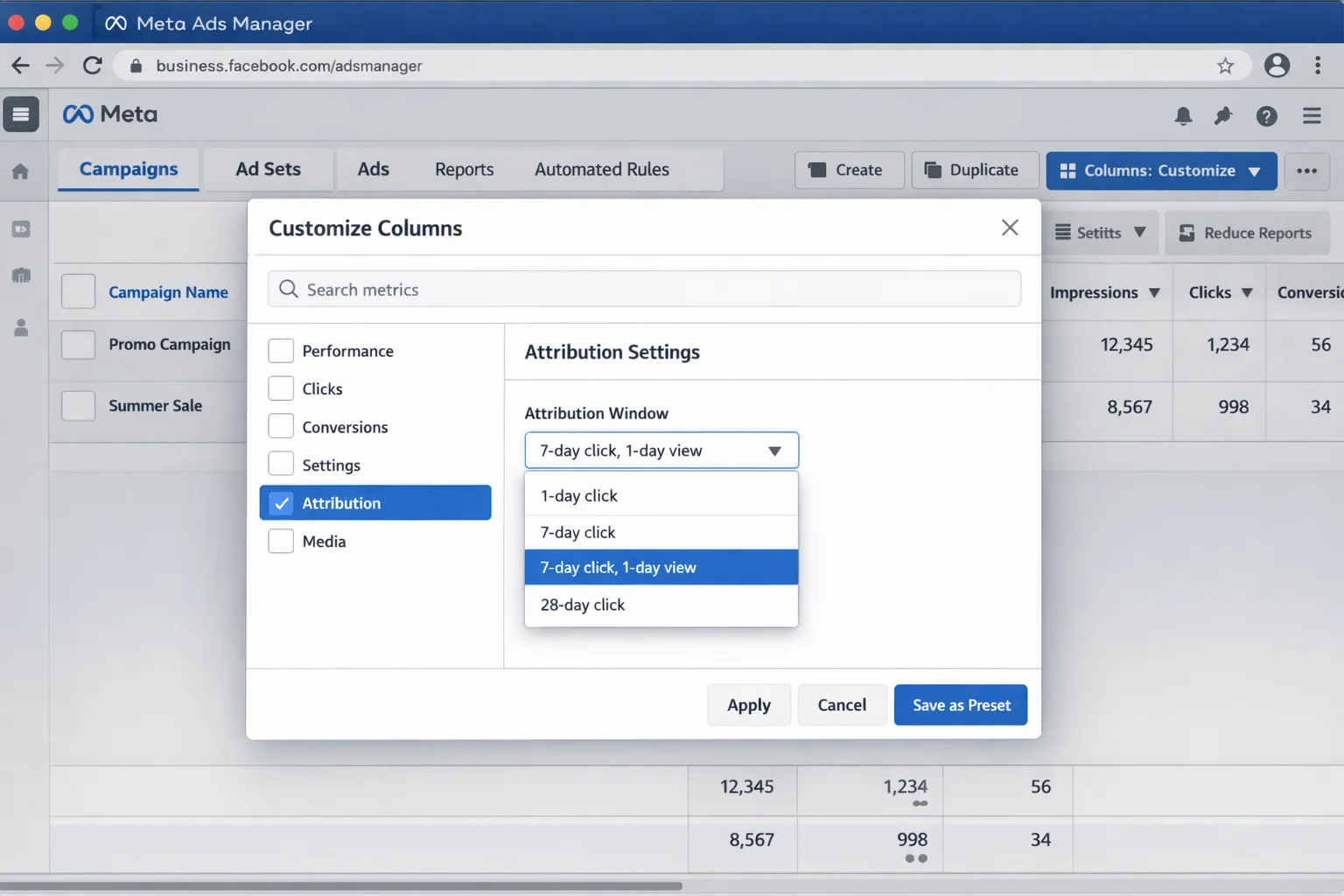
By default, Meta’s attribution window is set to 7-day click, 1-day view. This means Meta takes credit for a conversion if someone clicked your ad within the last 7 days OR simply saw your ad within the last 24 hours before converting.
That view-through component is a big deal. Someone scrolls past your ad at 7am, then Googles your brand at 9pm and buys. Meta counts that as a conversion.
Your Google Analytics will attribute that sale to organic search. Meta will attribute it to your ad. Both platforms think they drove the sale. Neither is technically wrong. They are just using different attribution models.
According to Meta’s official documentation on conversion count differences, this is by design. The platforms measure differently because they define “credit” differently.
Multiple Conversions by the Same Person
Here is one that trips up a lot of advertisers.
If one person clicks your ad and buys 3 products, Meta reports 3 conversions. Your Shopify shows 1 order (or maybe 3 line items in 1 order). The mismatch feels suspicious. It is actually just a counting methodology difference.
The “All Conversions” setting (which is the default) counts every conversion event, not every unique person. Dataslayer’s research on first conversion vs. all conversions found that for lead generation campaigns, the All Conversions setting inflates numbers by 20-25% compared to First Conversion counting.
If you are comparing Meta’s “all conversions” against your CRM’s unique customer count, you will see a mismatch EVERY time. That is math, not fraud.
Products Not Promoted in Your Ad
This one catches even experienced buyers off guard.
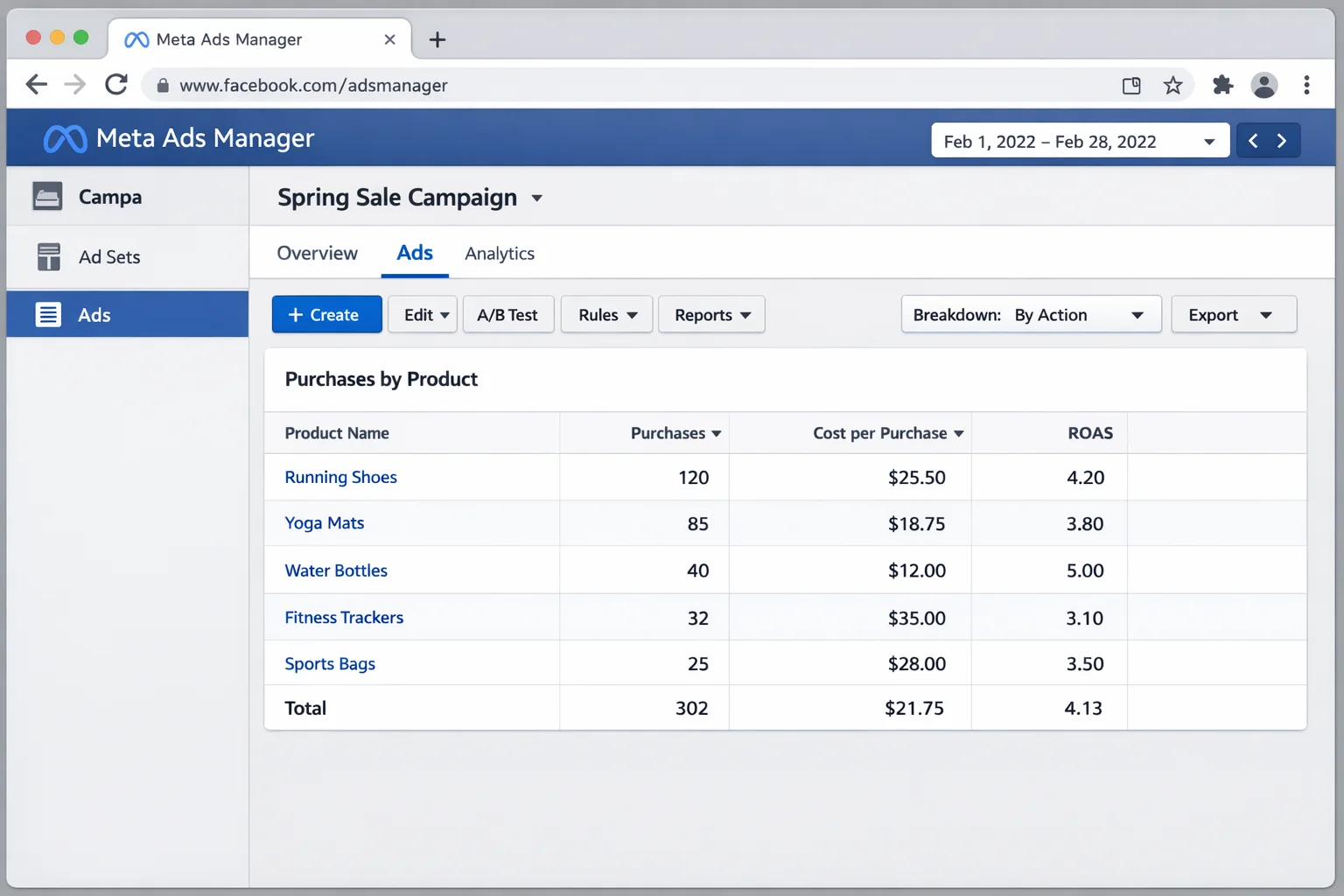
You run an ad for Product A. Someone clicks, lands on Product A’s page, browses around, and buys Product B instead.
Meta attributes that Product B purchase to your ad. Because the ad drove the session, even though the user bought something different.
Your ad report says “1 purchase.” You look at Product A’s sales and see zero from ads. The conversion is real. It is just attributed to the ad that started the journey, not the product you promoted.
The 4 Root Causes of Inflated Meta Conversions
Now that you understand what the results column actually includes, let’s walk through the four specific technical problems that cause inflated numbers.
Most advertisers have at least one of these issues running right now without knowing it.
Cause 1: Your Event Is Firing Where It Shouldn’t
This is the number one culprit. And it is the easiest to miss.
Your Meta Pixel or Conversions API is set up to fire a “Purchase” event on your confirmation page. Sounds correct. But here is where it goes wrong.
A customer completes a purchase and lands on the thank-you page. The pixel fires. Purchase recorded. The customer then refreshes the page to check their order details. The pixel fires again. Two purchases recorded from one transaction.
Or your pixel is installed on a staging environment. Or it is firing on draft orders in Shopify (this is a documented Shopify issue that inflates Meta conversion data).
Or you have an iframe loading on a page that triggers the event in the background.
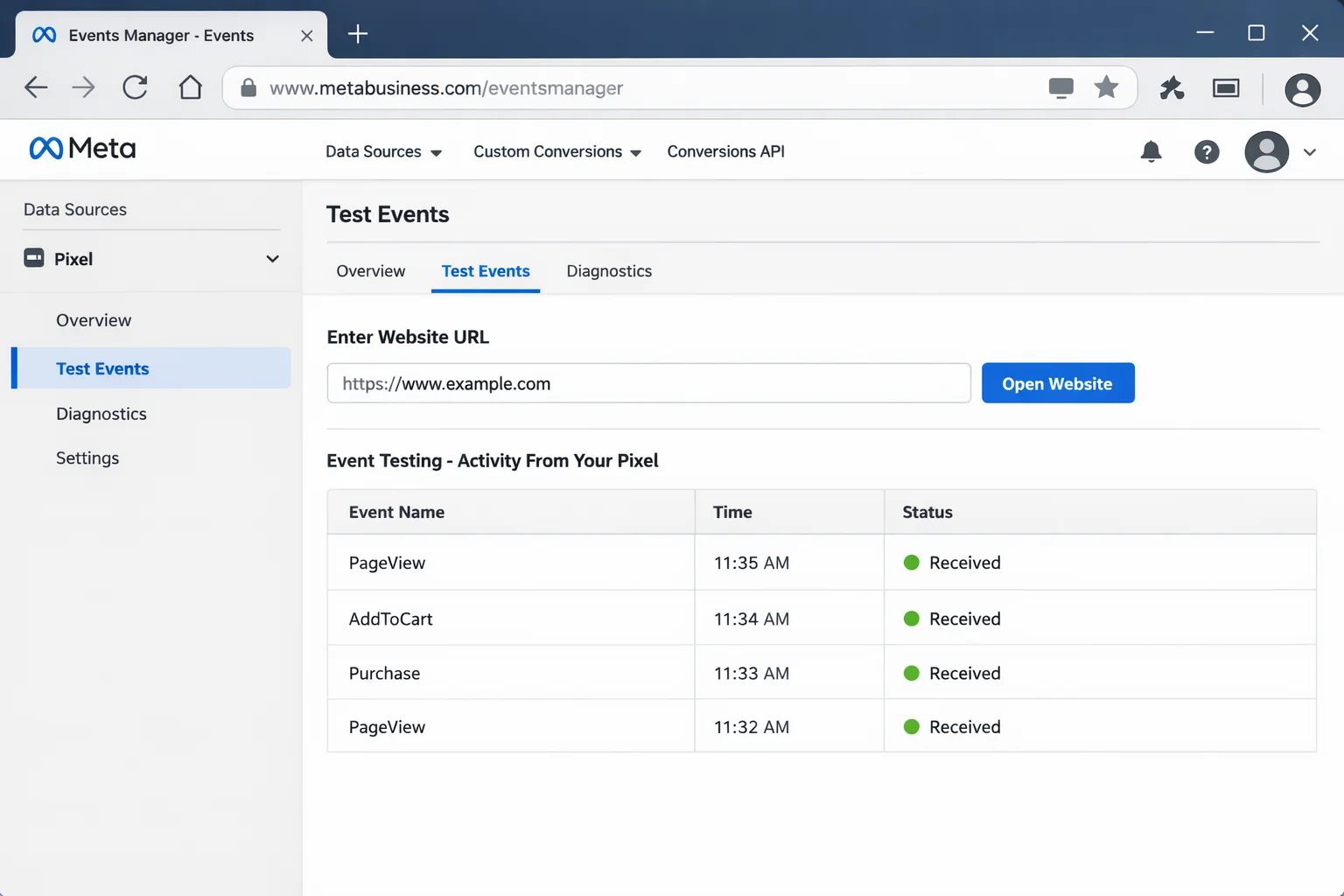
The fix starts with auditing exactly where and when your events fire. Open the Meta Events Manager, use the Test Events tool, and walk through every conversion path on your site. Click every button. Refresh every confirmation page. Visit every page that should NOT fire the event and verify that it does not.
Cause 2: You’re Double-Counting With CRM and Web Events
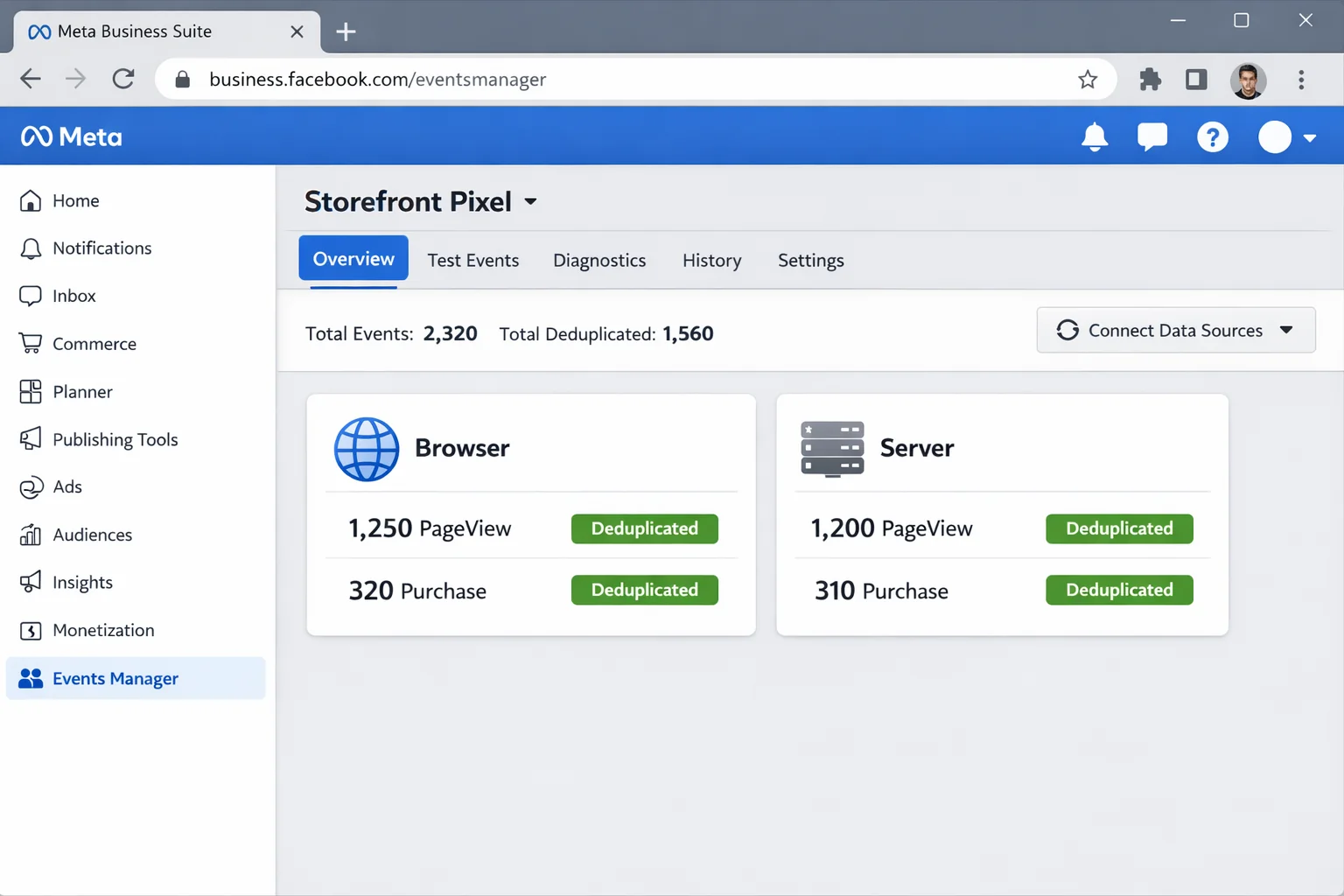
If you are sending conversion data to Meta through BOTH the browser Pixel and a server-side Conversions API (CAPI), you are at risk of counting every conversion twice.
This is exactly what deduplication is supposed to prevent. But it only works if you set it up correctly.
The way it works: both the Pixel and CAPI send a purchase event to Meta. Meta checks if both events share the same event_id. If they do, Meta deduplicates them into one conversion. If they do NOT share the same event_id (or if one of them does not include an event_id at all), Meta counts them as two separate conversions.
This is one of the most common sources of inflated numbers for businesses using both tracking methods. And most businesses using CAPI are also running the Pixel, which means most businesses using CAPI are at risk.
According to Meta’s guide on handling duplicate events, you must pass identical event_id values from both the Pixel and CAPI for every single conversion event. Miss this step and your conversions will be inflated by up to 2x.
Cause 3: Your Attribution Window Is Wider Than You Think
You think you are measuring direct response. Meta is measuring something much broader.
The default 7-day click, 1-day view attribution window means Meta is pulling in conversions from interactions you would never consider “your ad’s doing.”
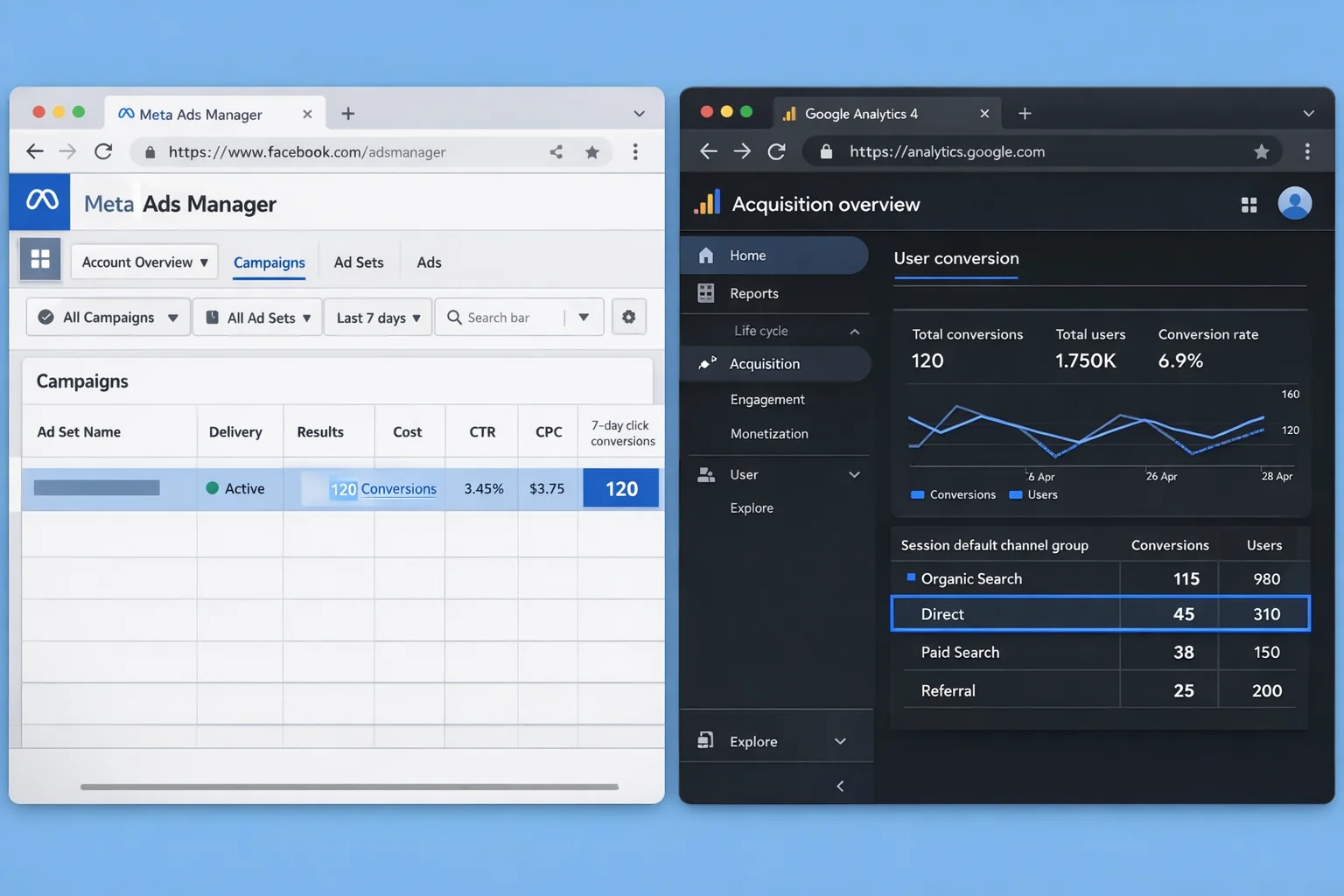
Someone clicked your ad on Monday. They came back via a Google search on Saturday and bought. Meta counts it. Your GA4 attributes it to organic.
Someone saw your ad in their feed (did not click). They typed your URL directly into their browser 18 hours later and bought. Meta counts it as a view-through conversion. Your analytics calls it direct traffic.
These are not fabricated conversions. They are conversions attributed under a wider window than most advertisers realize they have selected.
The disconnect gets worse when you compare Meta data against platforms like GA4, which defaults to last-click attribution. The same sale gets credited to two different sources. Neither platform is lying. They just disagree on who gets the credit.
Cause 4: You’re Misreading the Results Column
This is the most common problem. And it requires zero technical fixes. Just a shift in understanding.
The “Results” column in Meta Ads Manager reflects ALL attributed conversions under your selected optimization event and attribution window. That means it can include:
- View-through conversions (people who saw your ad but did not click)
- Conversions from products you did not promote
- Multiple conversions by the same person
- Conversions from 7-day click attribution (not just same-session)
When you compare this number against your Shopify dashboard, your CRM, or your GA4, you are comparing a broad, multi-touch attributed number against a single-source, last-click number. The mismatch is inevitable.
The results column is useful. But calling it “purchases from my ad” is a simplification that creates confusion.
How to Debug Inflated Conversions Step by Step
Here is the diagnostic checklist. Run through it in order. Most advertisers find their issue in the first two steps.
Step 1: Audit your event setup.
Open Meta Events Manager. Click on your Pixel. Go to the Test Events tab. Walk through every conversion flow on your site. Watch for duplicate events, events firing on page refresh, and events firing on pages where they should not (staging, draft orders, iframes).
Step 2: Check your deduplication.
If you are running both the Pixel and Conversions API, verify that every event sends an identical event_id from both sources. In Events Manager, look at the Overview tab. If you see the same event type coming from both “Browser” and “Server” without a deduplication match rate, you have a problem.
Step 3: Review your attribution window.
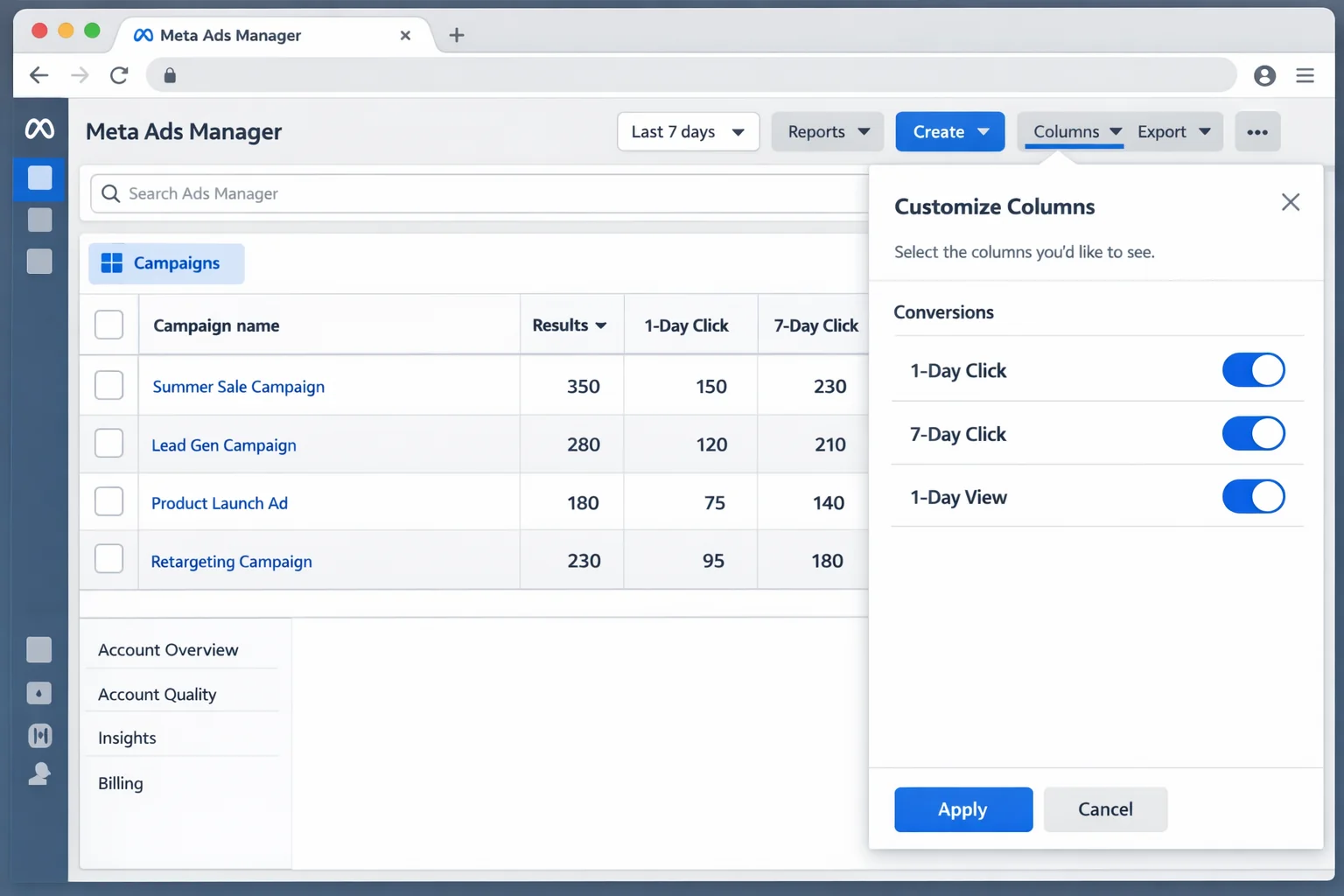
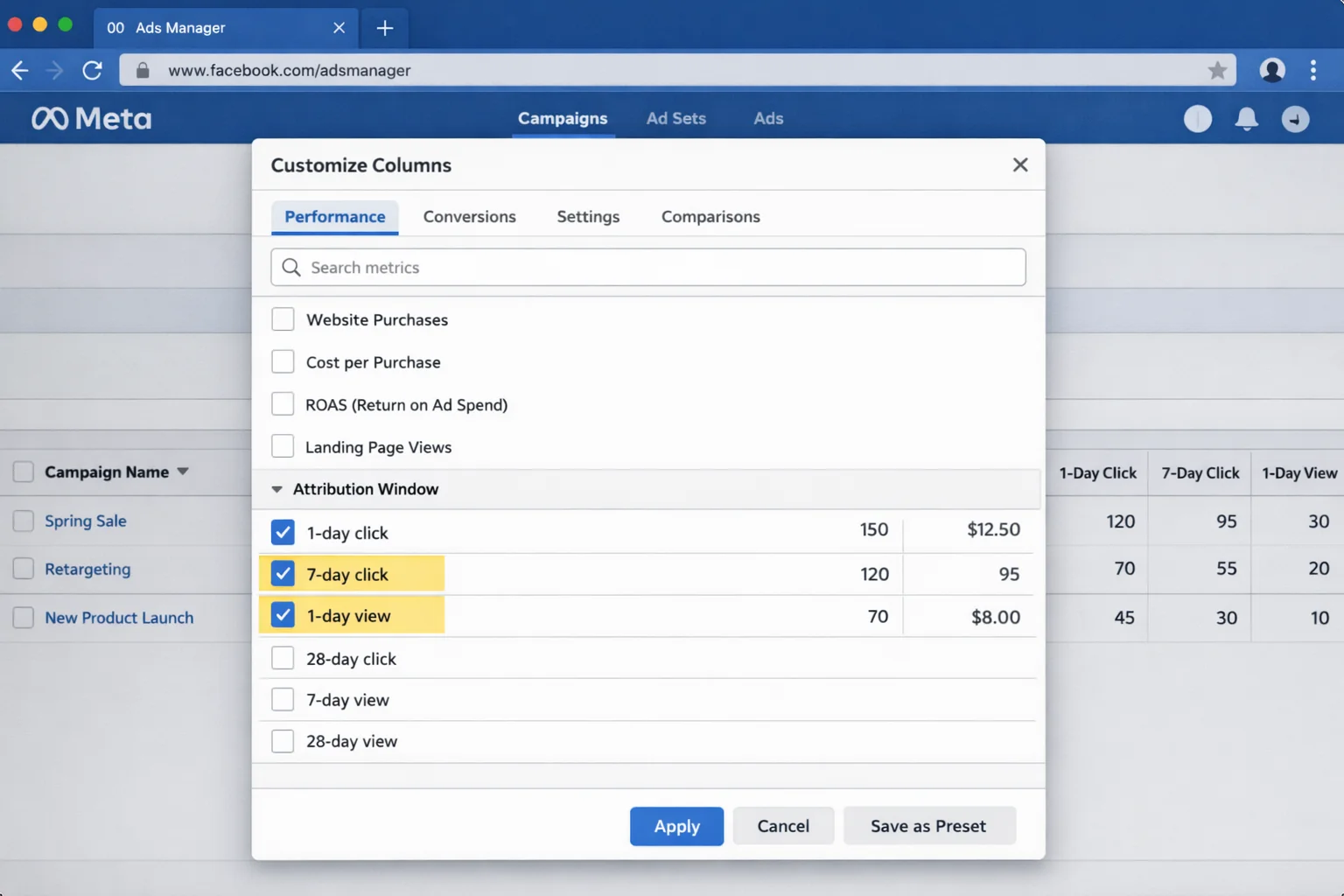
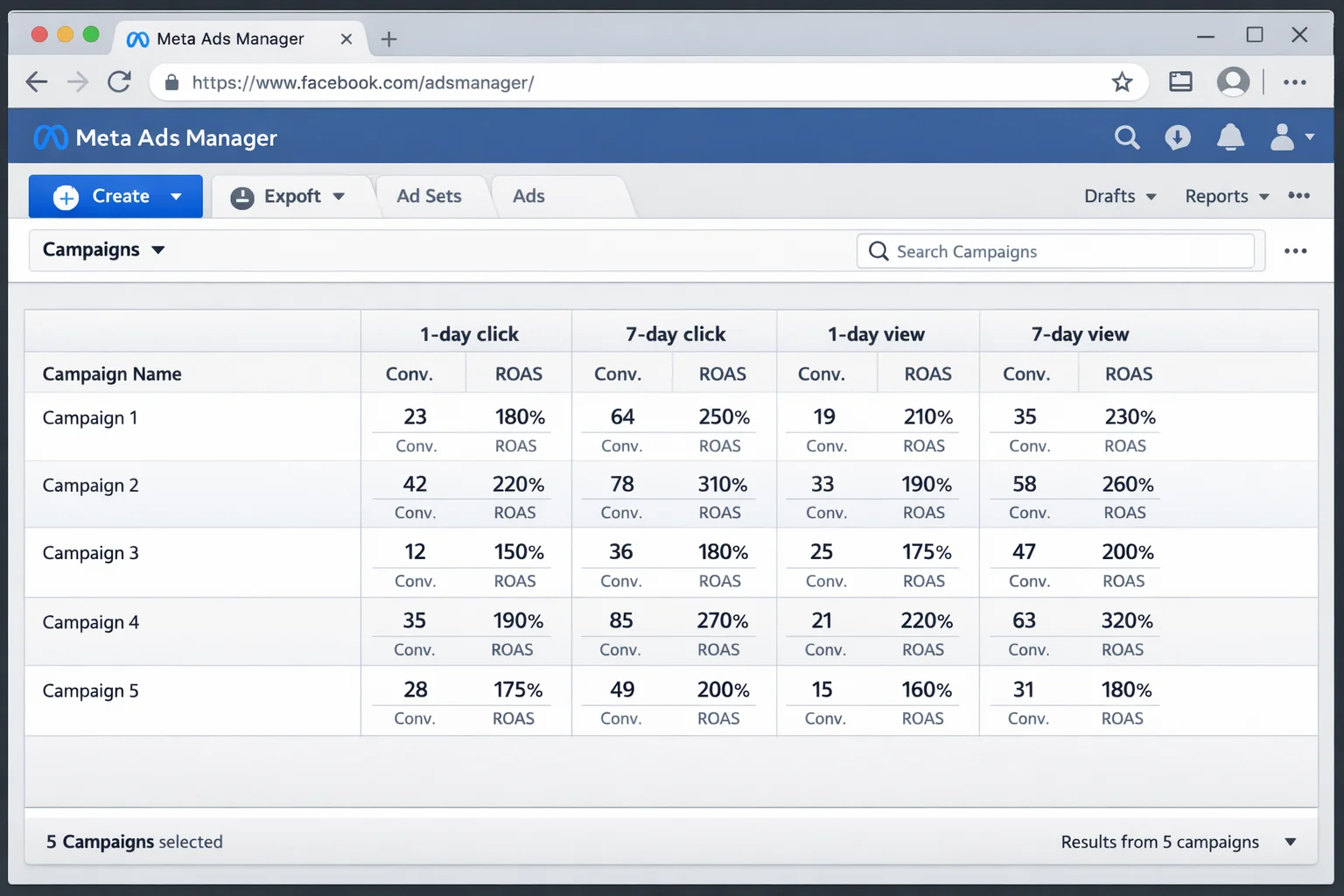
Go to your campaign reporting. Click Columns, then Customize Columns. Add the individual attribution breakdown columns: 1-day click, 7-day click, and 1-day view. Compare these numbers. If view-through conversions make up a large percentage of your total, that explains the gap between Meta and your other platforms.
Step 4: Compare using the same attribution model.
Do not compare Meta’s default 7-day click/1-day view number against GA4’s last-click number and call it a discrepancy. Either adjust Meta’s attribution window to 1-day click for a closer comparison, or use Meta’s compare attribution settings feature to see how numbers shift across windows.
Step 5: Check first conversion vs. all conversions.
In your reporting columns, look at whether you are viewing “All Conversions” or “First Conversion” counting. If your ad drove one person to buy 4 items, All Conversions shows 4. First Conversion shows 1. Make sure you know which one you are looking at.
How to Fix Each Problem Once You Find It
Here is the fix mapped to each root cause. Do not skip these. Each one takes 15 minutes or less and can save you weeks of bad decisions based on bad data.
Event setup problem: Implement event deduplication at the code level. Use the event_id parameter on every conversion event. Add logic to prevent the pixel from firing on page refreshes. The simplest approach is to check for a “conversion already fired” cookie or session flag before the pixel executes. Exclude staging environments, draft orders, and test transactions from your pixel entirely. If you are on Shopify, go to your Online Store settings and verify that Meta’s pixel is NOT installed on pages where draft orders get created.
Deduplication failure: Ensure your Pixel and CAPI both pass the same event_id for every conversion. This is the critical field. If the IDs do not match exactly, Meta treats them as two separate events. If you are using a third-party integration (Shopify’s native CAPI, a tool like Stape, or a CDP), check that integration’s deduplication settings. Most have a toggle or configuration field for this. Verify it is active and working. Then go back to Events Manager and confirm the deduplication match rate is above 90%.
Attribution window mismatch: Change your reporting attribution window to match how you measure success. If you only trust same-session purchases, switch to 1-day click attribution in your ad set settings. Know that this will reduce your reported conversions. That is expected. You are not losing real conversions. You are removing attribution noise that was inflating the count. The number you see after this change aligns more closely with your backend data.
Misinterpretation of results: Customize your Ads Manager columns. Remove the default “Results” column entirely. Replace it with specific columns: “Purchases (1-day click)”, “Purchases (7-day click)”, “Purchases (1-day view).” Save this as a custom column preset so you do not have to rebuild it every time. This gives you granular control over what you are actually measuring and makes your reporting immediately more trustworthy.
Key Takeaways
The takeaway: Start with the most likely explanation before assuming Meta is lying. The probability that a technical or configuration issue explains your inflated numbers is dramatically higher than the probability of data fabrication.
The takeaway: Your “results” column is not a simple purchase count. It is a composite of view-through conversions, multi-product attributions, repeat conversions by the same person, and 7-day click attributions all bundled together.
The takeaway: Run the 5-step debug checklist. Audit events, check deduplication, review attribution windows, compare apples to apples, and verify your conversion counting method. Most issues surface in steps 1 and 2.
The takeaway: Customize your columns. Replace the default “Results” column with individual attribution window breakdowns. This single change will save you hours of confusion and give you reporting you can actually trust.
Bookmark this checklist. Run it the next time your Meta numbers look too good. The fix is almost always in the data.